Nettoyage du stockage
Gratuit à consulter, Pro pour modifier
Trouve les caches et les restes que vous pouvez supprimer sans risque, montre ce que c’est, et envoie dans la Corbeille ce que vous choisissez.
The problem
Your disk is filling up and you do not know why. The usual suspects are caches that apps rebuild anyway, build data from Xcode, old simulators, installers forgotten in Downloads, and leftovers from apps you deleted long ago.
Tools that delete first and explain later are how people lose files. Hedroom works the other way round: it explains each category, leaves your own files unticked, sends everything to the Trash, and asks you each time.
How it works
- Scan. Hedroom walks the folders where caches, build data and leftovers live and counts what each would really free. It changes nothing; the summary says "nothing changed yet". It needs no admin password and no Full Disk Access.
- Sort. "Safe to remove" is what apps rebuild or left behind. "Review first" is your own files, such as installers, large files you have not opened in months and old downloads. Those are off, and not even looked at until you turn them on.
- Choose. Open any category to see its files, tick or untick them, and press Space for Quick Look. Press Clean up and a confirmation lists exactly what will move.
- Check again, then move. Right before moving each item, Hedroom confirms it is still the same file, still in an allowed folder, and not open in an app. Then it goes to the Trash.
- Receipt and Put back. The receipt says what went to the Trash. Space counts as freed only once the Trash is emptied, which is a separate confirmation covering only what Hedroom moved. Put back restores the items.
What you will see
Storage opens with your disk (for example "Macintosh HD"), a "Free after cleanup" number beside what is free now, and a bar of used, selected and free space. Two groups follow: Safe to remove, with a short explanation of each category, and Review first. Rows that need Full Disk Access say so, with a button to allow it.
When an app that owns a category is running, a warning row appears: "Xcode is open. Build data it's using right now will be skipped unless you quit Xcode first." Its Quit Xcode button uses the normal, graceful quit.
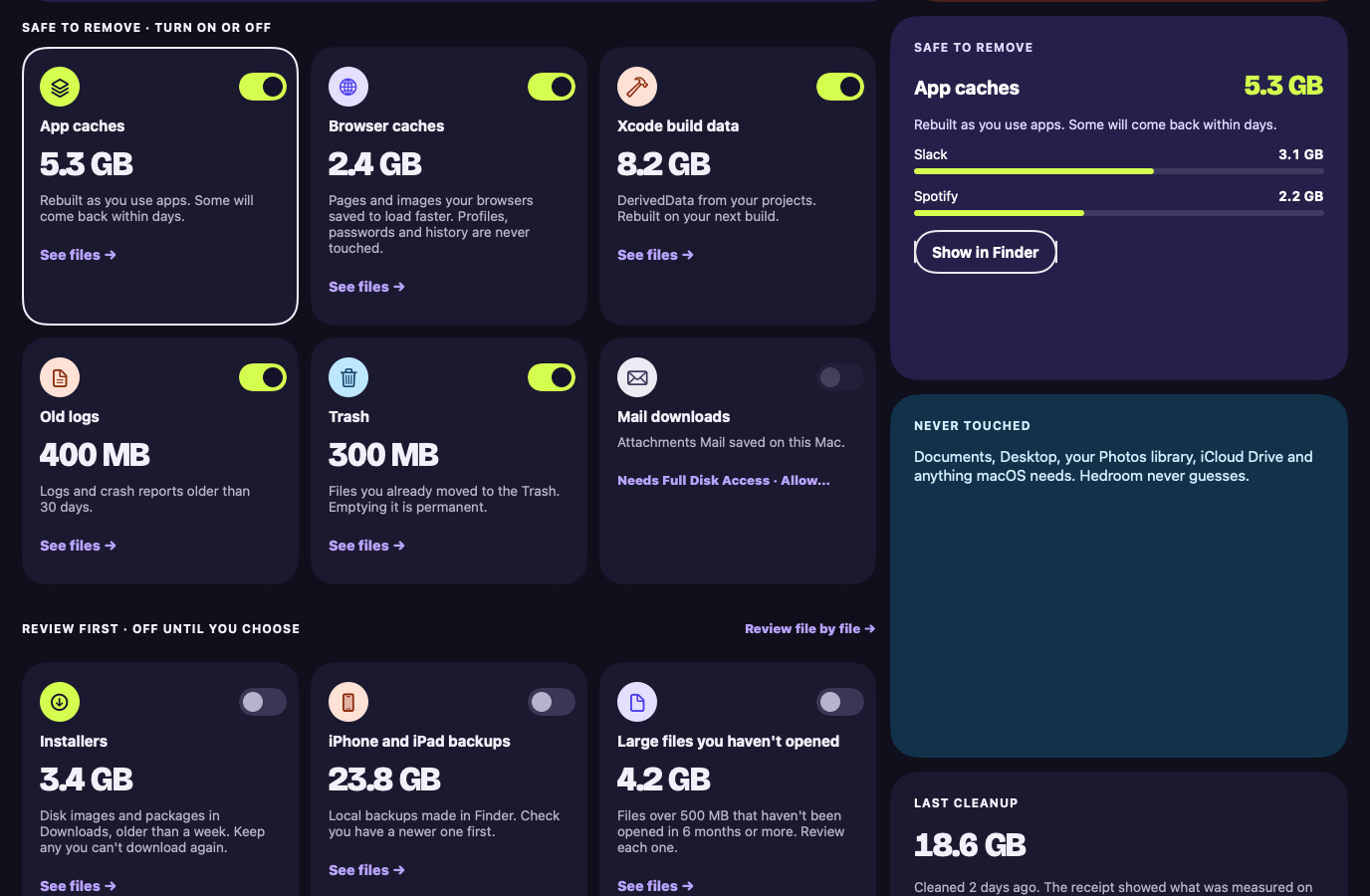
A worked example
Example, not real data
Build data with Xcode still open
Say the scan finds 18 GB across caches, Xcode build data and leftovers from two apps you deleted. You press Clean up, and the confirmation lists every item.
Xcode is open, so build data it touched in the last 10 minutes is skipped, and Hedroom says so. The rest goes to the Trash. The receipt reports what moved and offers "Empty these from the Trash". Free space grows only if you empty them, and some caches will return as apps rebuild them, which is normal. If you change your mind first, Put back returns each item to where it was.
Details and limits
Ce qu’il fait
- Analyse les caches, les restes de build et les fichiers similaires, avec une explication claire de chaque catégorie.
- Affiche d’abord vos propres fichiers pour examen, avec une case à cocher et Coup d’œil, et les laisse décochés.
- Ignore les fichiers ouverts dans une app et tient une liste pour les remettre en place.
What it will not do
- Supprimer vos fichiers sans votre permission explicite, à chaque fois. Le nettoyage déplace les fichiers dans la Corbeille. Les supprimer définitivement nécessite à chaque fois une confirmation distincte, et les règles ou autres actions automatiques ne peuvent jamais supprimer de fichiers.
- Demander l’accès complet au disque pendant la configuration.
Limits
- Déplacer des fichiers dans la Corbeille ne libère rien tant que la Corbeille n’est pas vidée. Le reçu propose de ne vider que les éléments que Hedroom a déplacés, après votre confirmation.
- Les sauvegardes d’iPhone et d’iPad et les téléchargements de Mail nécessitent l’accès complet au disque. Sans lui, ces lignes l’indiquent et tout le reste fonctionne.
Gratuit ou Pro
L’analyse est gratuite. Le nettoyage fait partie de Pro.
A scan changes nothing, so it is free. Cleaning up changes your disk, so it is Pro.
Questions people ask
Does Hedroom delete my files?
Not without your permission each time. Cleanup moves files to the Trash. Removing them for good is a separate confirmation every time, covers only items Hedroom moved, and rules or other automatic actions can never do it. There is no "don't ask again".
Is it safe to remove caches?
Caches are files apps rebuild when they need them, so nothing of yours is lost. Some will come back as apps rebuild them, so part of the space returns. The receipt says so.
Could it touch my photos, iCloud Drive or Mail?
No. Hedroom refuses a fixed list of places, including system folders, iCloud Drive, the Photos library, Mail (apart from Mail downloads you choose), Messages and any .git folder. It also skips iCloud files that are not downloaded to your Mac.
What if it moves something I need?
Open the cleanup's receipt and press Put back. Items return to where they were. If something new now sits there, they go to a Hedroom Restored folder in Downloads, and nothing is overwritten.