निदान
मुफ़्त
Hedroom मेमोरी प्रेशर, स्वैप, CPU, थर्मल, बैटरी और स्टोरेज पढ़ता है, फिर उस एक ऐप का नाम बताता है जो मायने रखता है।
The problem
Your Mac feels slow, and Activity Monitor gives you numbers, not an answer. The memory bar is nearly full, which looks alarming, but a Mac that has been on for a while always shows most of its memory as used: macOS fills spare memory with cached files and hands it back the moment an app asks. Used memory on its own tells you very little.
What matters is whether macOS is struggling to find room, and whether one app has grown far past its normal size. Spotting that by eye means watching several graphs for an hour. Diagnosis does the watching, names the one app that matters, or says plainly that nothing needs you.
How it works
- Read. One sampler reads memory pressure, swap growth, CPU, thermals, battery and free storage. It checks every 2 seconds while a Hedroom window or the menu bar panel is open, and less often in the background.
- Judge memory by pressure. The state is Healthy, Strained or Critical, from macOS's own pressure level and how fast swap is growing. Swap that merely exists never makes your Mac Strained. Swap that keeps growing can.
- Learn what is normal. For each app, Hedroom learns a usual size from your last 7 days. Until it has watched an app for about 6 hours, it says it is still learning and uses typical sizes for apps it knows by name.
- Wait to be sure. An app is flagged as leaking only when it is at least 3 times its usual size, at least 1 GB (or 6% of your RAM, if that is larger), and has stayed that way for 20 minutes or keeps growing. A background app that averages 80% of one core for 3 minutes is flagged as runaway CPU.
- Say it once. The finding appears on Today with its reason. Notifications are rationed: the same finding about the same app at most once every 6 hours, and no more than 3 non-urgent ones a day.
What you will see
Today shows one thing: a single suggested fix with its reason, such as an app's name, its size and how many times its usual size that is, or "All good. Nothing needs you right now." The Memory screen adds the pressure gauge, a 60-minute timeline of Healthy, Strained and Critical, the swap rate, what is filling your memory (apps, wired and GPU, compressed, cached files), and every app sorted by size.
The menu bar icon shows the same state, with a small dot when a fix is ready. Apple's own processes get a plain-words explanation and no buttons.
A worked example
Example, not real data
Slack grows over an afternoon
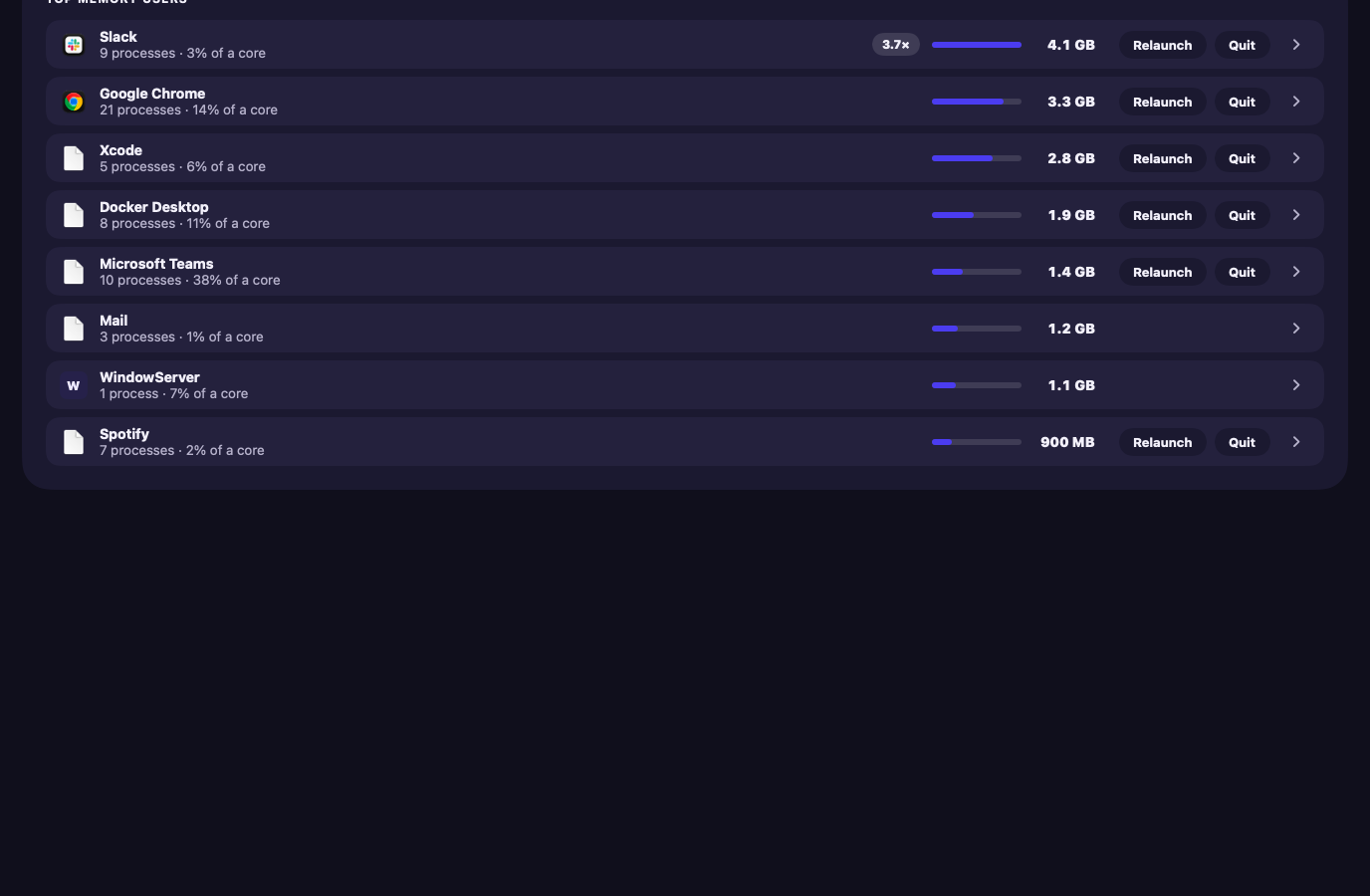
Say Slack usually sits around 1.1 GB on your Mac. After a long call it reads 4.1 GB, which is 3.7 times its usual size, and it has stayed there for 20 minutes. Memory pressure has moved to Strained and swap keeps growing.
Today shows "Slack · 4.1 GB · 3.7× its usual size" and offers to relaunch it, with the reason. Nothing happens until you press the button; Fixes covers what the button does. If pressure had stayed Healthy, the same growth would still show on Today, but you would be notified only from 4 times its usual size.
Details and limits
यह क्या करता है
- मेमोरी का आकलन मेमोरी प्रेशर और स्वैप के बढ़ने की गति से करता है, "इस्तेमाल हुई RAM" से नहीं।
- आपके Mac पर हर ऐप का सामान्य आकार सीखता है, फिर उस ऐप को चिह्नित करता है जो उसके कई गुना तक बढ़कर वहीं बना रहे।
- macOS के अपने प्रोसेस, जैसे kernel_task और WindowServer, आसान शब्दों में समझाता है।
- मेनू बार में सारांश दिखाता है और लीक, बेकाबू CPU और गंभीर प्रेशर के बारे में आपको अलर्ट करता है।
What it will not do
- "समस्याओं" की गिनती, डराने वाला स्कैन, या ऐसा प्रतिशत दिखाना जिसे उसने मापा न हो।
- सिर्फ़ देखकर आपके Mac के साथ कुछ भी कर देना।
Limits
- लीक तभी चिह्नित होता है जब कोई ऐप कुछ समय (डिफ़ॉल्ट रूप से लगभग 20 मिनट) असामान्य रूप से बड़ा बना रहे, इसलिए थोड़ी देर का उछाल कोई निष्कर्ष नहीं है।
- जब मेमोरी ठीक होती है तो वह यही कहता है और शांत रहता है। यह सामान्य स्थिति है, कोई कमी नहीं।
मुफ़्त या Pro
हमेशा के लिए मुफ़्त।
Reading your Mac changes nothing, so it stays free. Monitoring, explanations, alerts and the storage scan are free after the trial too.
Questions people ask
Does it need my admin password or Full Disk Access?
No. Setup asks for neither, and the readings behind Diagnosis need no admin rights. Full Disk Access is asked for only if you later turn on iPhone backups or Mail downloads in Storage.
Will watching my Mac slow it down?
Hedroom's budget is under 0.5% of one core on average and under 80 MB of memory. With no window open and 5-second ticks it measured 0.27% of one core on one MacBook Pro. That is one Mac, not a promise for yours. How it works has the measured figures and their limits.
Does anything leave my Mac?
No readings, app names or usage leave it. The only things that go online are the license check, update checks, a weekly download of the signed process library, and feedback you choose to send. Privacy lists each one.
What if it names the wrong app?
A finding is a suggestion. Nothing is done until you press a button, and you can put any app on your never-touch list, after which fixes and rules skip it. Alerts still show.